Introduction
Batch processing PDFs online comes down to one thing: a queue that somebody owns. Few free pages have one, and those that do put it behind an account and a monthly cap.
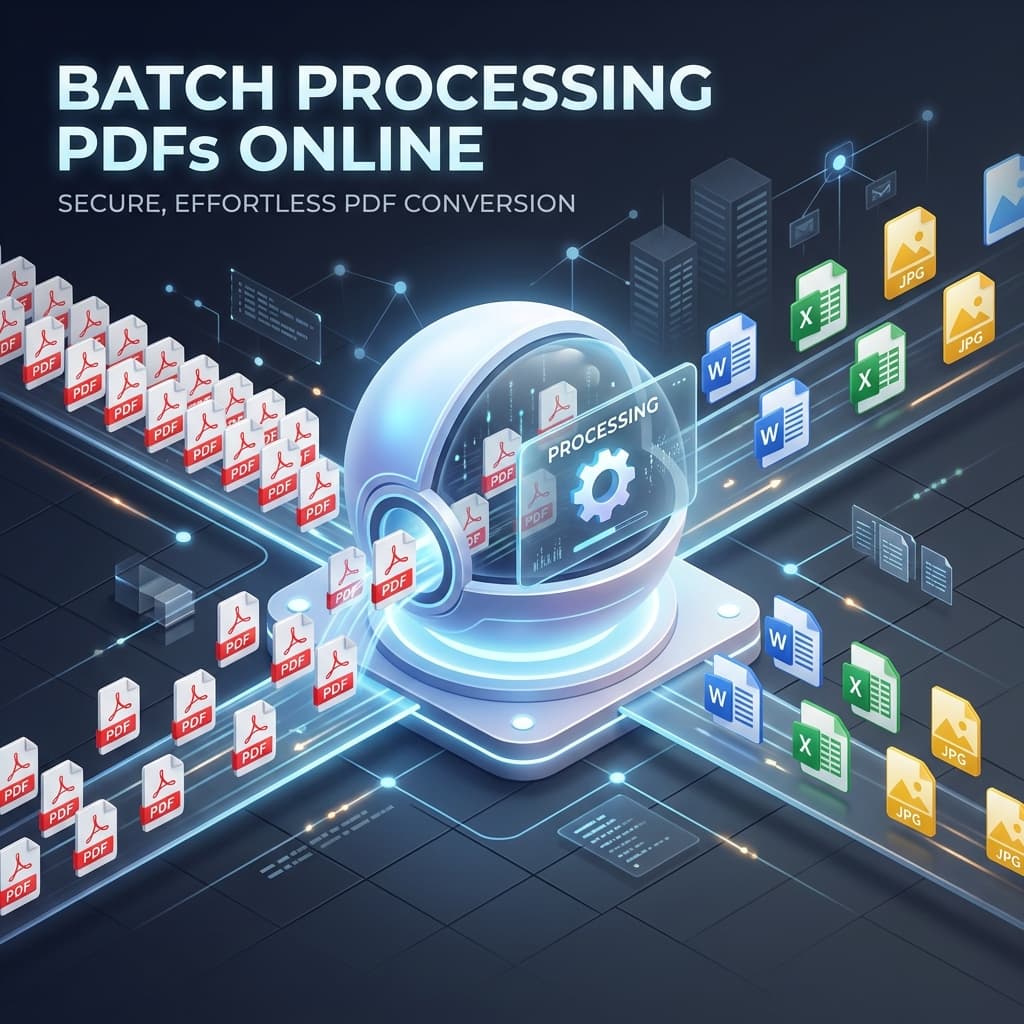
Whether you’re a remote team juggling contracts, a teacher collecting assignments, or a developer automating reports, the question is which part of the job a tool will do and which part you will build. This guide covers what to check in a web‑based PDF tool, how the common categories compare, and where the Online Document Viewer fits: a free browser viewer and converter that takes one file at a time and asks for no account.
Why Batch PDF Processing Matters for Modern Workflows with a Cross‑Platform Online Document Viewer
Reduce Manual Overhead
Most businesses still treat PDFs as a “last‑minute” format: create a Word doc, export to PDF, email it. Do that for dozens of files and the time loss adds up fast. Batch processing cuts out the repetitive click‑and‑drag routine, letting you:
- Convert a folder in one pass — a quarter of invoices out of PDF and into Excel, instead of one file per coffee.
- Run it unattended — the queue works while you do something else and reports what failed.
The payoff? A smoother pipeline, fewer human errors, and faster turn‑around for clients or internal stakeholders.
Stay Cross‑Platform
Your team probably works on Windows laptops, macOS desktops, Linux servers, and mobile devices. A cloud‑based solution that runs in any modern browser guarantees the same experience for everyone—whether they’re on a Chromebook in a coffee shop or a corporate‑managed iPad. No installers, no version mismatches, no OS‑specific bugs.
Preserve Security & Compliance
When PDFs hold contracts, medical records, or personal identifiers, security isn’t optional. Put the same questions to every online tool, this one included:
- Is the transfer over TLS, and is the connection the only thing that is encrypted?
- Where does the file sit while it is being processed, and who can read it there?
- When is it deleted — on a timer, at the end of the session, or whenever someone gets round to it?
- Is there an account, and therefore an audit trail? On a free viewer with no accounts there is neither, and no certification behind it either.
Processing files in the cloud (instead of on a local machine) also frees up CPU and RAM—handy on low‑powered devices.
Core Features to Look for in an Online Document Viewer
| Feature | Why It Matters | Typical Implementation |
|---|---|---|
| Batch Upload & Queue Management | Lets you drop dozens of PDFs at once and watch a live progress bar. | Drag‑and‑drop zone, “Add more files” button, auto‑retry on failures. |
| Multi‑Format Support | PDFs rarely exist in isolation; you may need to convert DOCX, PPT, images, or even CAD files. | One engine for Office, images, CAD and e‑books. |
| File‑Size Limits & Tiered Plans | Larger PDFs (e.g., scanned contracts > 100 MB) require generous limits. | Free tier often caps at 20–50 MB; paid plans raise the ceiling to 500 MB or more. |
| Security & Privacy Controls | Compliance with GDPR, HIPAA, or internal policies. | SSL/TLS, optional AES‑256, auto‑deletion after 1 hour or configurable period. |
| Conversion Accuracy | Preserve layout, fonts, and annotations when turning PDFs into Word, Excel, or images. | Server‑side rendering engines, faithful font substitution, vector‑preserving output. |
| No‑Installation Requirement | Eliminates IT overhead and ensures instant accessibility. | Purely web‑based UI, works on any modern browser without plugins. |
| API & Automation Hooks | Power users need programmatic batch jobs (e.g., nightly report generation). | RESTful endpoints, SDKs for JavaScript, Python, .NET, etc. |
| User‑Friendly UI | Adoption hinges on how quickly a non‑technical user can start a batch job. | Clear step‑by‑step wizard, live preview, drag‑and‑drop, and cancel buttons. |
When you compare tools, weigh each of these criteria against your team’s priorities. A service that shines in security but caps file size at 20 MB might be perfect for a legal firm handling short contracts, but it won’t cut it for architects processing huge blueprint PDFs.
Comparing Popular Cloud‑Based PDF Tools for File Conversion
Note: The following analysis is based on publicly available feature lists, user feedback, and independent testing. No brand names are mentioned to keep the focus on capabilities rather than marketing.
1. Free‑First Converters
These platforms give you a no‑installation, browser‑only experience and support a long list of formats. You’ll get:
- Instant preview via JPEG thumbnails, so you can double‑check the right file before conversion.
- Secure transfer through SSL, with automatic deletion after the conversion finishes.
The downside? Batch‑processing limits are often vague, and some services don’t spell out exactly how long they keep your files. If you need to handle many files at once, the missing queue manager can become a bottleneck.
2. Collaboration‑Oriented Viewers
Some tools bundle PDF viewing with screen‑recording, GIF capture, and real‑time annotation. Their strengths lie in:
- Rich visual collaboration (commenting, version history).
- Responsive design that works on tablets and phones.
But the free tiers usually restrict uploads to 100 MB and hide advanced security features—like password protection or self‑destruct—behind a paid plan. Large‑scale batch conversion? You’ll quickly outgrow the free limits.
3. Developer‑Centric API Services
These services target businesses that need high‑throughput conversion via APIs. Highlights include:
- Fast rendering of a broad format catalogue using server‑side engines.
- Strong privacy: files are visible only to the authenticated user or token.
The catch is a low free‑tier file size cap (often 20 MB) and a pricing model that nudges you toward a premium subscription for any serious batch workload. Their UI is minimal, focusing on API calls rather than a full‑featured visual interface.
4. All‑In‑One Office Suites
Platforms that combine PDF viewing, editing, and conversion into a single web app often provide the most feature‑rich experience (annotation, form filling, etc.). They are:
- Cross‑platform and typically support drag‑and‑drop.
- Secure, with TLS encryption and short‑term file retention.
Yet many advanced editing tools sit behind a subscription, and free users may hit hidden file‑size limits or daily usage caps. If you only need batch conversion and not editing, those extra bells and whistles can feel like unnecessary bloat.
5. Lightweight View‑Only Solutions
A handful of services focus solely on viewing a massive array of document types without any conversion or editing. Their benefits are:
- Zero‑install, instant loading even on low‑end devices.
- Minimal privacy footprint because files never leave the browser.
Since they lack conversion capabilities, they aren’t a fit for batch processing scenarios where you need to transform PDFs into other formats.
Where the Online Document Viewer Sits
It belongs to the last category, with conversion attached. The shape is worth stating plainly:
- One file at a time – no batch upload, no ZIP, no folder, no queue. Each file is its own upload.
- No account – nothing to register, no tier above the free one, no quota to exhaust.
- Viewing across 70+ extensions – PDF, Office, CAD, Visio, Project, PSD, email, EPUB and the image formats, each with its own size ceiling rather than one site-wide number.
- Conversion on its own pages – PDF to Word, Excel, PowerPoint, PNG or JPG; Word and Excel to PDF or image; images to PDF, WebP or TIFF.
- Nothing stored – HTTPS in transit, a temporary session while you read, and the file gone when the tab closes.
For a hundred contracts at midnight it is the wrong tool, and the right one is the queue described above, running against an engine you host. For the file in front of you now it is one upload and no setup.
How to Optimize Your Batch Jobs for Speed and Security
1. Prepare Files Before Upload
- Rename consistently (e.g.,
2024_Q1_SalesReport.pdf). Consistent naming helps you spot errors in the preview stage. - Compress scanned PDFs using a lossless tool (e.g., Ghostscript) to stay under size limits without losing quality.
- Remove unnecessary pages if you only need a subset; fewer pages translate to faster conversion.
2. Work Through the Files One at a Time
There is no queue manager here, and no folder upload. Each file is its own upload, so:
- Do the ones that matter first. The order is whatever order you open them in.
- Drop a file that stalls and move on; a stall usually means an unsupported extension, a damaged file, or one over the limit for its format.
- A protected Office file has a password box. Type it under the upload box and the workbook or presentation opens. A password-protected PDF is the exception: the protection has to come off before it gets here.
3. Enforce Security Best Practices
- Always use HTTPS; never click “continue to HTTP” warnings.
- Encrypt sensitive files before they leave your machine if the content warrants it — a hosted converter renders on the server, so the server reads what you send it.
- Read the retention policy and check it against behaviour. On this site the file sits in a temporary session and goes when the tab closes; nothing is stored and there is no account for it to be stored under.
4. Test with a Small Sample First
Before committing a 200‑file batch, run a pilot conversion with 5–10 representative files:
- Check that fonts, tables, and images render correctly.
- Check that text search finds the words you expect. Scanned pages hold pixels, not characters, and return no hits.
- Confirm that the output format meets downstream requirements (e.g., Word macro compatibility).
Getting Started with the Online Document Viewer
One file, one tab, no account:
- Open the viewer to read the file, or a converter page if it has to come out as something else.
- Drop the file in. Stay under the ceiling for that format — 25 MB for PDF and images, 20 MB for Excel and PowerPoint, 15 MB for Word, 10 MB for CAD and email, 5 MB for HTML, XML and text. Over it, the error names the number.
- Read it, or download the converted output.
Close the tab and the file goes with the session. There is no queue to babysit because there is no queue: the next file is the next upload. For the other ninety-nine, the pipeline is yours to build, and the rendering engine that goes inside it is the Doconut .NET SDK.