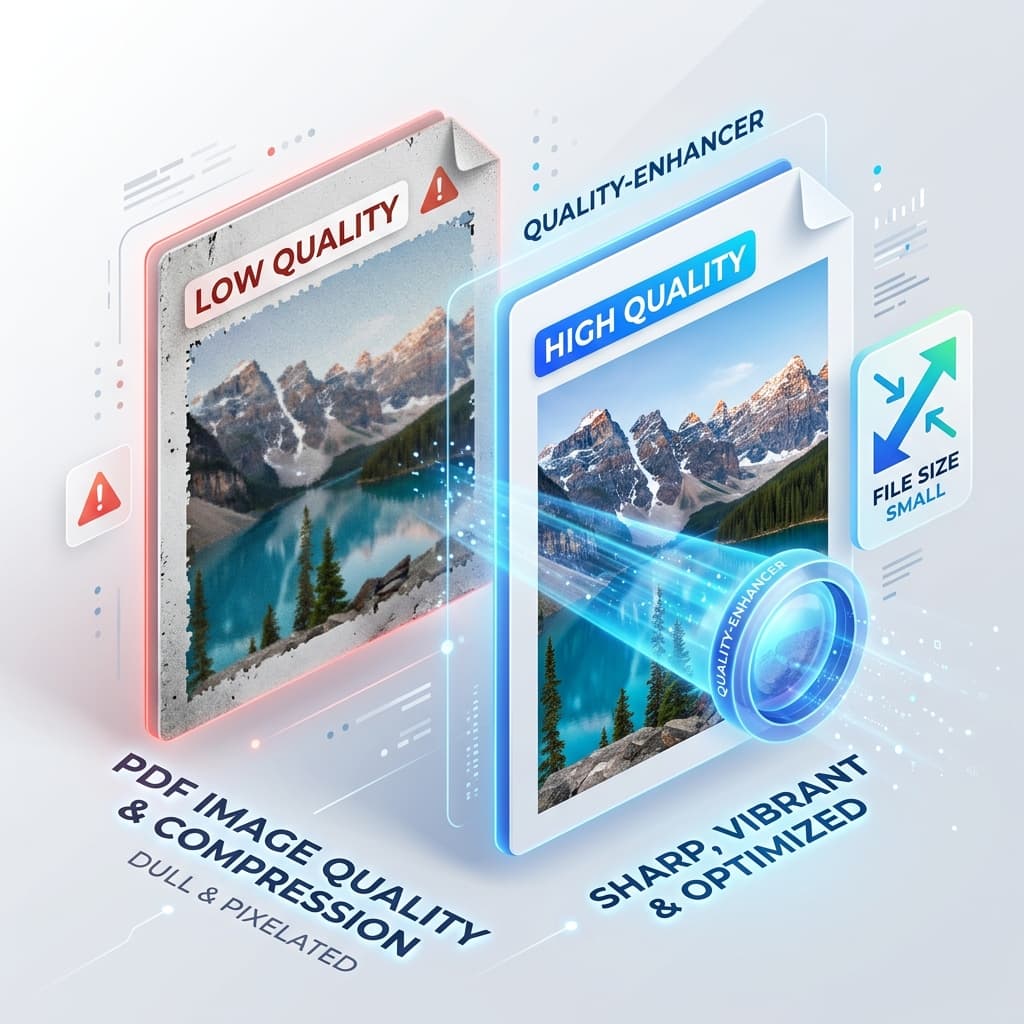
Need to shrink a PDF without losing visual detail? The answer is in the settings you pick before you compress, not in the tool you compress with. Get those right and the file gets smaller while the pictures stay readable.
Every day professionals — designers, marketers, engineers, students — send PDFs packed with high-resolution images. The temptation to squeeze them down to a few megabytes ends in blurry pictures, washed-out colours and unreadable charts. Below: why quality drops, which settings to change, and how to check the result before the file leaves your desk.
What PDF compression actually does to images
PDFs are essentially containers. Inside, they can hold text, vector graphics, and raster images, each with its own compression algorithm. When you run a document conversion or file conversion tool, the software decides how aggressively to compress each element.
Most free or browser‑based tools default to lossy JPEG because it delivers the biggest size reduction. That’s why a PDF that once displayed crisp product photos can end up looking grainy after a single click.
Understanding the distinction helps you make informed choices: you can keep high‑resolution photos lossless while still compressing text and vector elements aggressively. The key is a balanced strategy that treats each asset according to its visual importance.
Why Image Quality Often Drops During Compression
1. Over‑Aggressive JPEG Settings
Many compressors use a default quality factor of 60‑70 % for JPEG images. That might be fine for web thumbnails, but it’s disastrous for print‑ready graphics. The algorithm discards colour nuances and introduces those ugly blocky patterns around edges.
2. Down‑sampling DPI Without Reason
Resolution (dots per inch, DPI) is a common lever. Dropping a 300 DPI photo to 72 DPI can slash file size dramatically, but it also strips away detail you might need later. If the PDF will be viewed only on screens, 150 DPI is often enough; for printing, you’ll want 300 DPI or higher.
3. Stripping Colour Profiles
Professional images embed ICC colour profiles to guarantee consistent colour across devices. Some conversion pipelines strip these profiles to save bytes, leading to colour shifts that are especially noticeable in brand‑critical assets.
4. Converting Vector Graphics to Raster Images
A vector logo rendered as a raster image before compression loses its scalability. Zoom in, and the image becomes pixelated. Keeping vectors intact is essential for logos, schematics, and any artwork that must stay sharp at any zoom level.
5. Ignoring Metadata and Redundant Objects
PDFs often contain duplicate objects, hidden layers, or extensive metadata. Simple compressors may not clean these out, inflating size without adding visual value.
Spotting these pitfalls lets you target the right settings, preserving the visual integrity you need while still achieving a lean file.
Best practices for keeping image quality
| Practice | What to Do | Why It Helps |
|---|---|---|
| Choose the Right Compression Mode | Use lossless (ZIP/PNG) for logos, diagrams, and any image with text. Apply lossy JPEG only to photographs where minor artefacts are acceptable. | Keeps critical details intact while still shrinking size where possible. |
| Set an Appropriate DPI | For on‑screen PDFs, aim for 150 DPI. For print, keep 300 DPI or higher. | Guarantees enough pixel density for the intended medium without unnecessary bloat. |
| Preserve Colour Profiles | Export images with embedded sRGB or AdobeRGB profiles and ensure the converter retains them. | Maintains colour accuracy across browsers, mobile devices, and printers. |
| Leave Vectors Untouched | Do not rasterise vector graphics unless you have a compelling reason. | Guarantees razor‑sharp rendering at any zoom level. |
| Remove Redundant Elements | Use tools that clean duplicate objects, unused fonts, and unnecessary metadata. | Reduces file size without affecting visible content. |
| Batch‑Process with Consistent Settings | When handling many PDFs, apply a uniform compression profile rather than tweaking each file individually. | Saves time and ensures consistent quality across a document set. |
Follow these six guidelines and you’ll see a dramatic reduction in file size while the images stay as vivid as the originals.
What this site does, and what it does not
OnlineDocumentViewer.com does not compress PDFs. There is no compression tool here, no DPI slider, no lossless-versus-lossy switch. Do the compression where the file came from — Acrobat, Word's Compress Pictures, InDesign export presets, Ghostscript — using the settings above.
What this site is for is the step after: checking the result before you send it.
Check the compressed file at full zoom
Upload the PDF to the PDF viewer, up to 25 MB, and zoom to 200% on the pages that carry the artwork. Blocky edges around lettering, banding across gradients and shifted brand colours are invisible at page-fit and obvious at 200%. The file is deleted from the server afterwards. No account, nothing to install.
Pull a page back out as an image
The PDF converter exports a PDF to PNG or JPG, up to 25 MB — enough to put a compressed page next to the original and compare them. It also exports to Word, Excel and PowerPoint. That is conversion, not compression: it rewrites the document into another format rather than shrinking the one you have.
One file per upload. There is no batch queue and no public API on this site.
Key Takeaways
- Pick the right compression mode: stick with lossless for logos and diagrams, reserve lossy JPEG for photographs where a tiny loss is acceptable.
- Match DPI to the end use: 150 DPI works for on‑screen viewing; 300 DPI or higher is needed for print.
- Keep colour profiles and vectors intact: they safeguard colour fidelity and scalability, ensuring your PDF looks sharp no matter where it’s opened.