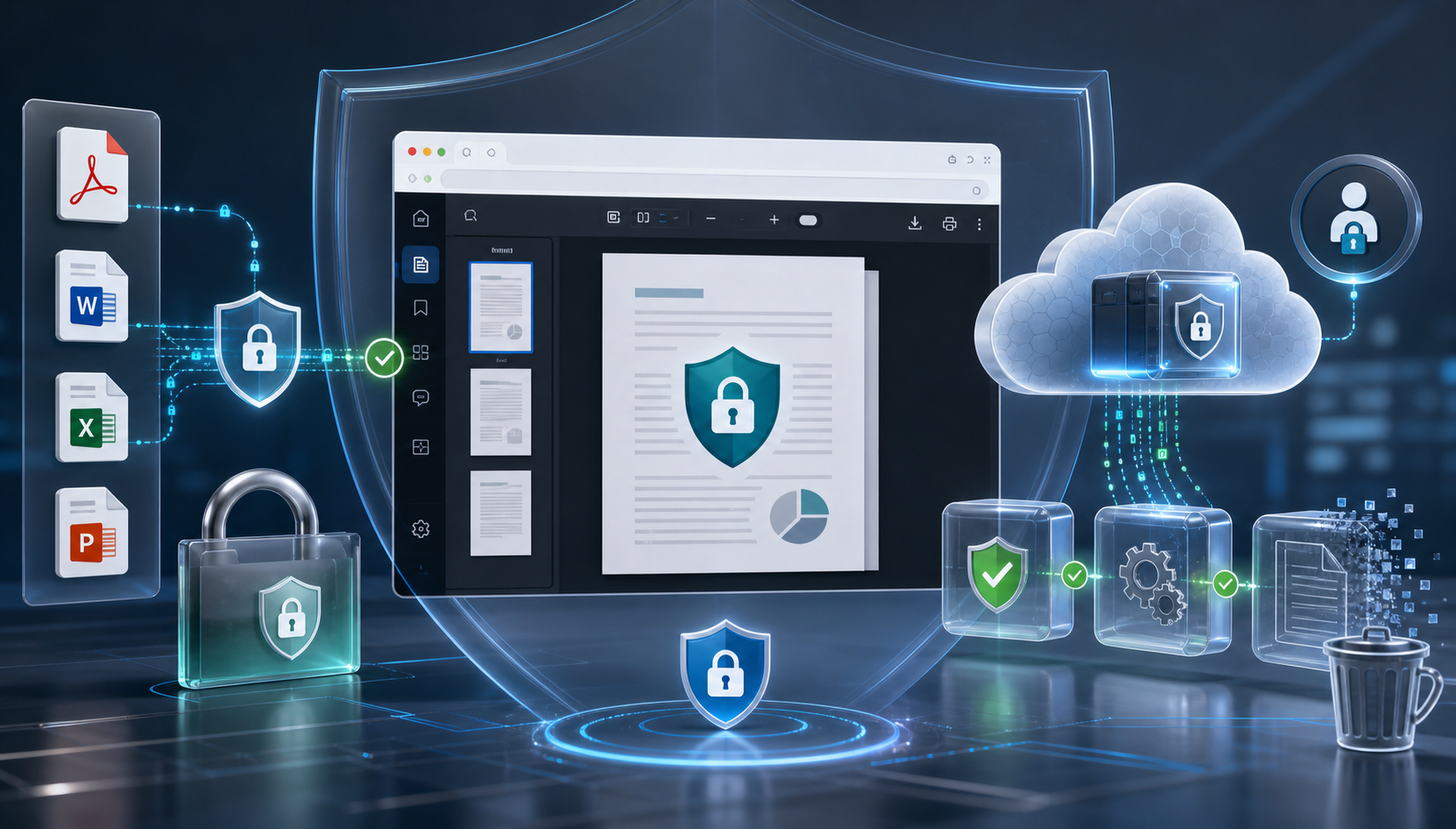
Online PDF viewers and document preview tools are convenient. They let users open files quickly from the browser without installing desktop software or downloading every document to their device.
However, when a file contains confidential information, convenience is not enough. Contracts, invoices, medical records, legal documents, financial reports, HR files, and internal business documents should be handled carefully.
Before using any online PDF viewer or document conversion service, you should understand where the file is processed, whether it is stored, how access is controlled, and whether the document leaves your environment.
This guide explains practical steps for protecting sensitive documents when using online viewing tools. It also explains when a controlled .NET document viewer, such as Doconut Viewer, may be a better option for business applications that need document preview inside their own system.
1. Understand the Main Risks
Before choosing a PDF viewer or document preview workflow, identify the risks involved.
| Risk | Why it matters |
|---|---|
| File upload to an unknown service | Sensitive files may be processed outside your organization’s control. |
| Temporary storage | Some services may keep files for a period of time after viewing or conversion. |
| Public or shared links | A link that does not expire can be forwarded to unauthorized users. |
| Browser download exposure | Users may download or save files locally without control. |
| Missing audit trail | Without logs, it can be difficult to know who accessed a document. |
| Weak access control | Anyone with the file URL may be able to open the document. |
| Third-party processing | External services may introduce privacy, compliance, or vendor risk. |
These risks do not mean you should never use online viewing tools. They mean you should use them carefully and understand the workflow before handling sensitive files.
2. Avoid Uploading Confidential Files to Unknown Services
Free online PDF converters and viewers can be useful for public or non-sensitive files. But they may not be suitable for confidential business documents.
Before uploading a sensitive file, check:
- Does the service explain where files are processed?
- Does it say whether files are stored?
- Does it explain how long files remain available?
- Does it provide a privacy policy?
- Does it require the file to be uploaded to third-party infrastructure?
- Is the service appropriate for business or regulated documents?
If you cannot answer these questions, avoid uploading confidential files.
For simple viewing of non-sensitive documents, Online Document Viewer can be useful. For business systems that need controlled document access inside their own application, a dedicated viewer SDK may be more appropriate.
3. Keep Sensitive Documents Inside Your Application Workflow
One of the safest ways to handle document preview is to keep the file inside your own application workflow.
Instead of asking users to download a file or upload it to a separate online converter, your application can display the document directly inside the browser.
A controlled document viewing workflow usually looks like this:
- The user signs in to your application.
- Your application checks whether the user has permission to access the document.
- The document is loaded from your approved storage location.
- The viewer displays the document inside the application.
- Your application keeps control over authentication, authorization, and logging.
This gives your team more control than a manual workflow where users download files and open them with external tools.
For .NET applications, Doconut Viewer is designed for embedded document viewing inside web applications. It can be used to render and interact with documents such as PDF, Word, Excel, CAD, and image files.
4. Verify Where Files Are Processed
When security matters, one of the most important questions is simple:
Do my files leave my environment?
Some online tools require files to be uploaded to external servers. That may be acceptable for public files, but it may not be acceptable for private business data.
If your organization needs tighter control, consider a solution that runs inside your own infrastructure.
According to the Doconut FAQ, Doconut is not a SaaS service. It is installed locally on your own servers or cloud infrastructure, and documents stay under your control. The FAQ also states that there are no calls made to Doconut servers.
That makes it relevant for teams that need document viewing inside their own application environment rather than relying on an external upload service.
You can review the Doconut FAQ here:
5. Use Application-Level Access Control
A secure document preview workflow should not depend only on the viewer. Your application should control who can open each document.
Common access control practices include:
- Require users to sign in before viewing documents.
- Check permissions before loading the file.
- Avoid exposing direct file paths when possible.
- Use short-lived access links when your storage provider supports them.
- Avoid public folders for sensitive documents.
- Log document access when required by your business process.
- Separate public files from confidential files.
The viewer is only one part of the workflow. Authentication, authorization, storage rules, and logging should be handled by your application.
6. Be Careful With Download and Print Options
If users can download or print a file, they can create local copies outside your application’s control.
This may be acceptable for some workflows, but not for all.
Before enabling download or print options, ask:
- Should this type of user be allowed to download the document?
- Should printing be allowed?
- Is the file confidential?
- Is the document only meant for preview?
- Do you need a record of who accessed it?
- Do you need a watermark or audit process?
A document viewer can help keep users inside the application, but your team still needs to decide what actions should be allowed for each document type and user role.
7. Review Storage and Temporary Files
Sensitive document workflows should also define what happens before and after viewing.
Review these points:
- Where is the original file stored?
- Are temporary files created during rendering?
- Where are those temporary files located?
- How long are temporary files kept?
- Are generated previews cached?
- Does the application clean up old files?
- Are storage folders protected from direct public access?
Avoid vague assumptions such as “the file disappears automatically” unless the product documentation clearly states how cleanup works.
For applications using Doconut, review the official documentation and examples from the Doconut Download page to understand the correct setup for your project.
8. Use Secure Storage Sources
Many applications store documents in different places, such as local server folders, databases, URLs, intranet locations, or cloud storage.
The Doconut FAQ mentions support for viewing files from physical paths, streams, databases, URLs, intranet locations, IP addresses, and cloud providers such as Amazon AWS S3, Azure Storage, Google Cloud, Dropbox, and Redis.
This is useful when your application already manages documents in approved storage locations and you want to add document preview without changing your entire storage architecture.
Even when using cloud storage, you should still apply security best practices:
- Keep buckets or containers private.
- Use access policies.
- Avoid public document URLs for sensitive files.
- Rotate credentials when needed.
- Limit permissions by application role.
- Monitor access to confidential files.
9. Avoid Unsupported Security Claims
Security content should be precise. Avoid publishing claims such as:
- “GDPR compliant”
- “automatic deletion”
- “end-to-end encrypted”
- “zero-risk”
- “fully secure”
- “military-grade encryption”
- “instant secure preview”
- “complete data protection”
These phrases should only be used if they are clearly supported by official product documentation, legal terms, or security documentation.
A safer way to write about security is to describe the actual behavior:
- Where the software runs.
- Whether files leave your infrastructure.
- Whether external calls are made.
- Which storage sources are supported.
- Which access controls are handled by your application.
- Which deployment model is used.
This keeps the content accurate and avoids overpromising.
10. When to Use Online Document Viewer
Online Document Viewer is useful when you need a simple way to open and preview documents from the browser.
It can be helpful for:
- Quick PDF preview
- Opening non-sensitive documents online
- Reviewing documents without installing desktop software
- Testing how a file looks in the browser
- Sharing a simple viewing experience with users
You can try it here:
For sensitive documents, internal systems, and business applications, make sure your workflow is designed around access control, storage security, and clear file handling rules.
11. When to Consider Doconut Viewer
Consider Doconut Viewer when:
- You are building a .NET application.
- You need document preview inside your own application.
- You want users to view files without leaving your system.
- You need support for multiple business document formats.
- You want your application to control authentication and permissions.
- You want documents to remain under your infrastructure and application rules.
Doconut Viewer is designed for .NET web application scenarios, including ASP.NET, MVC, .NET Core, .NET 6+, Blazor, and related integrations.
The Doconut FAQ also states that no additional Office installation is required on the server or client side, except for any special fonts used by the documents.
Key Takeaways
- Do not upload confidential documents to unknown online services.
- Always verify where files are processed and whether they are stored.
- Keep sensitive document preview inside your own application workflow when possible.
- Let your application handle authentication, permissions, and logging.
- Be careful with download and print options.
- Review temporary files, caching, and storage cleanup.
- Avoid unsupported security claims.
- Use Online Document Viewer for simple browser-based preview needs.
- Use Doconut Viewer when you need embedded document viewing inside a .NET application.
Common Questions
Can I use an online PDF viewer for confidential files? Only if you understand how the service handles files and your organization allows that workflow. For highly sensitive documents, a controlled application workflow is usually safer.
Is Online Document Viewer enough for business document workflows? It depends on the use case. It can be useful for simple browser-based viewing, but business systems often need authentication, permissions, logging, and controlled storage.
What is the safer option for a .NET application? For .NET applications, a dedicated viewer SDK such as Doconut Viewer may be a better fit because document preview can be integrated into your own application workflow.
Do Doconut files go to external servers? According to the Doconut FAQ, Doconut is installed in your own environment, and documents stay under your control. The FAQ also states that no calls are made to Doconut servers.
Can Doconut view files from cloud storage? Yes. The Doconut FAQ mentions support for Amazon AWS S3, Azure Storage, Google Cloud, Dropbox, and Redis.
Does Doconut support only PDF files? No. The Doconut FAQ lists support for many file types, including PDF, Office formats, CAD files, email files, images, text files, and more.
Conclusion
Online document viewing is convenient, but sensitive files require a careful workflow.
Before using any online PDF viewer or converter, confirm where files are processed, how access is controlled, whether files are stored, and whether the workflow fits your organization’s security requirements.
For quick preview of non-sensitive files, Online Document Viewer is a simple browser-based option.
For .NET applications that need controlled document preview inside their own system, review Doconut Viewer, the Doconut FAQ, and the Doconut download resources.