Introduction
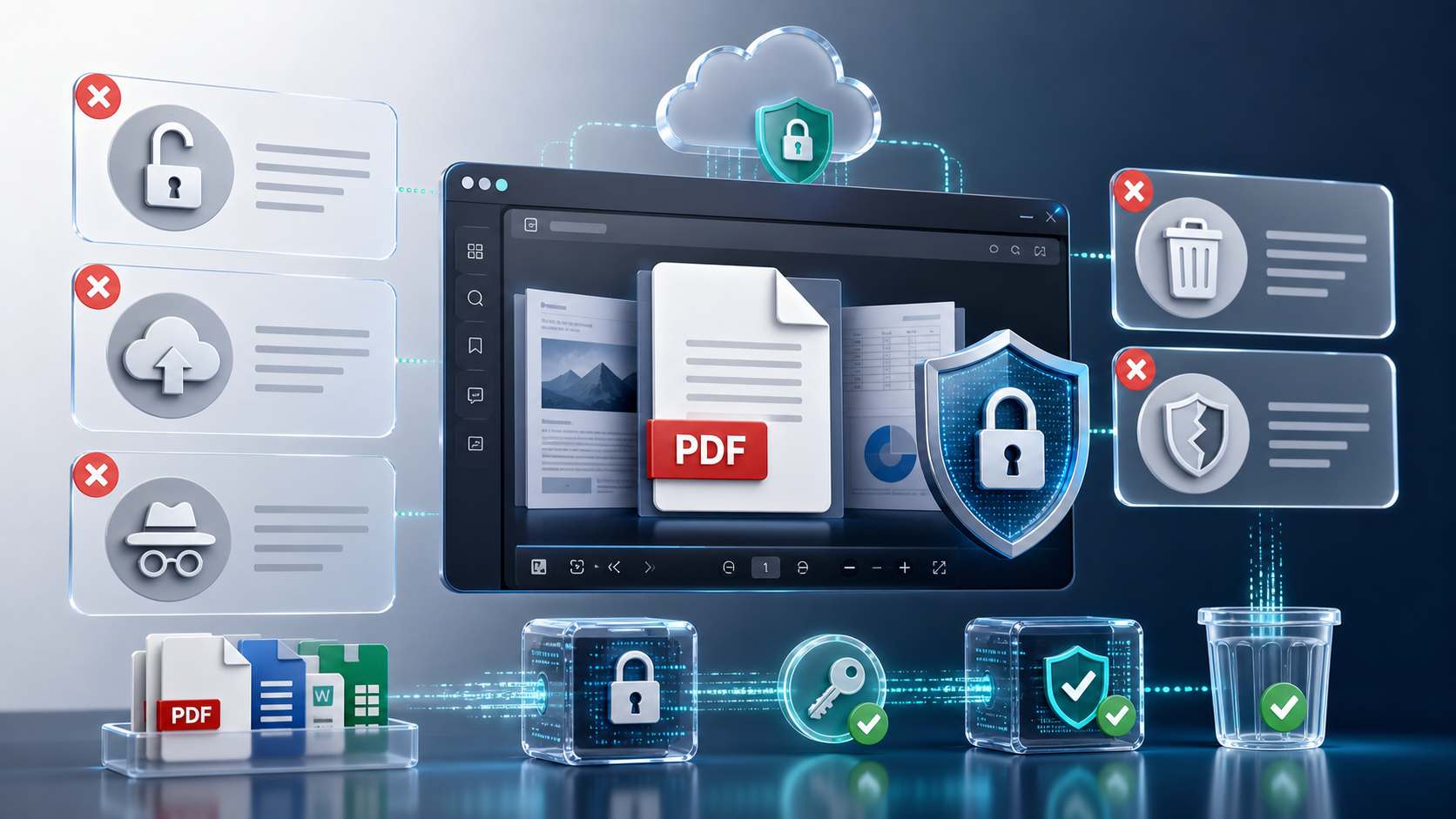
Online PDF viewers and conversion tools are useful when you need to open, preview, or convert a document without installing desktop software. They are especially convenient for quick document checks, file previews, and simple viewing tasks.
However, security matters when the file contains confidential information. Contracts, invoices, legal documents, financial reports, HR files, and internal business documents should not be uploaded or shared without understanding how the tool handles them.
There are many myths around online PDF viewers and conversion tools. Some people assume every online tool is unsafe. Others assume that HTTPS alone is enough. Both views are too simple.
The right approach is to understand the risks, verify the product documentation, and choose the correct workflow for the type of document you are handling.
For quick browser-based viewing, Online Document Viewer can be useful. For business applications that need controlled document preview inside a .NET system, Doconut Viewer is a relevant option to review.
Myth 1: “All online PDF tools store your files forever”
This is one of the most common concerns. The fear is that once a file is uploaded to an online viewer or converter, it may remain on the provider’s servers indefinitely.
The truth is that file handling depends on the specific tool. Some services may delete files quickly. Others may store files for a defined period. Some may not clearly explain their retention policy at all.
That is why you should never assume how a service handles files. Always check the documentation, privacy policy, or product terms before uploading sensitive documents.
Before using an online PDF tool, ask:
- Where is the file uploaded?
- Is the file stored after processing?
- How long is it kept?
- Can the file be accessed by a public link?
- Is the file deleted automatically?
- Is the deletion policy documented?
- Is the tool appropriate for confidential business documents?
For non-sensitive files, an online viewer may be enough. To answer the questions above for this site: the upload is deleted from the server when the viewing session ends, there is no account and no library, and each upload belongs to one session rather than to a durable link. No certification backs any of that — we hold none.
For confidential workflows, it is safer to use a controlled document viewing setup where your application manages storage, authentication, permissions, and access logs.
In .NET environments, Doconut Viewer can be installed in your own infrastructure. According to the Doconut FAQ, documents stay under your control and no data is sent to Doconut servers.
Myth 2: “HTTPS means the entire workflow is secure”
HTTPS is important, but it does not make the whole document workflow secure by itself.
HTTPS helps protect data while it travels between the browser and the server. But it does not answer other important questions:
- What happens after the file reaches the server?
- Is the file stored temporarily?
- Who can access the file?
- Are generated previews cached?
- Can users download or print the document?
- Are direct file URLs exposed?
- Are access attempts logged?
A secure document workflow requires more than encrypted transport. It also needs proper file storage, access control, cleanup rules, user permissions, and application-level checks.
For example, if a document URL is public, HTTPS will not stop someone from opening it if they have the link. If a file remains in a public folder, HTTPS does not fix the access problem.
A better approach is to let your application control the document workflow:
- Authenticate the user.
- Check whether the user has permission to view the document.
- Load the document from an approved storage source.
- Display the document through the viewer.
- Log access when required.
- Avoid exposing direct public file paths for sensitive documents.
Security should be designed around the full workflow, not only the viewer.
Myth 3: “Free online tools are always unsafe”
Free tools are not automatically unsafe. However, they should be used carefully.
A free online PDF viewer may be fine for public documents, sample files, test documents, or files that do not contain confidential information. The risk increases when the document contains personal, financial, legal, medical, or business-sensitive data.
The issue is not only whether the tool is free. The issue is whether the tool clearly explains how it handles files.
Before uploading sensitive documents to any free online service, check:
- Does the website provide a clear privacy policy?
- Does it explain how files are processed?
- Does it explain file retention?
- Does it say whether files are shared with third parties?
- Does it provide business or enterprise documentation?
- Is there a way to contact support?
- Is the workflow acceptable for your organization’s security rules?
If the service does not provide enough information, avoid using it for confidential documents.
For quick viewing of non-sensitive files, Online Document Viewer can be useful. For controlled document viewing inside your own application, review Doconut Viewer.
Myth 4: “PDF conversion and document viewing are the same thing”
PDF conversion and document viewing are related, but they are not the same.
A conversion tool changes a file from one format to another. For example:
- Word to PDF
- Excel to PDF
- PowerPoint to image
- PDF to image
- CAD to PDF
A document viewer displays the file so the user can read or interact with it in the browser. In many business workflows, users do not need to convert the file. They only need to preview it.
This distinction matters for security.
If the goal is only to preview a document, you may not need to create and store additional converted files. Creating extra output files can increase storage, cleanup, and access control responsibilities.
For business applications, it is often better to ask:
- Does the user need to convert the document?
- Or does the user only need to view it?
- Should the original file remain unchanged?
- Should the preview be temporary?
- Should the user be allowed to download the output?
- Should the system save a converted copy?
If your application only needs document preview, a viewer may be a better fit than a conversion workflow.
Doconut Viewer focuses on displaying documents inside .NET applications. Doconut also offers a Converter Plugin for projects that specifically need document conversion inside a .NET environment.
Myth 5: “Embedding a document viewer always means losing control”
Some teams worry that adding a document viewer means giving up control over files, access, or user actions. That can happen with the wrong workflow, but it is not always true.
The key is to choose a viewer that fits your application architecture.
For sensitive documents, the viewer should not replace your application’s security model. Your application should still control:
- User authentication
- Document permissions
- File storage
- Access rules
- Download and print decisions
- Logging
- Cleanup policies
- Role-based access
A viewer should be part of the application workflow, not a separate uncontrolled upload step.
According to the Doconut FAQ, Doconut is not a hosted SaaS service. It is installed locally on your own servers or cloud infrastructure, and no data is sent to Doconut servers. This makes it useful for teams that need document preview inside their own .NET application while keeping control over deployment and file handling.
Doconut also supports viewing files from physical paths, streams, URLs, databases, intranet locations, IP addresses, and supported cloud providers such as Amazon AWS S3, Azure Storage, Google Cloud, Dropbox, and Redis.
Practical Security Checklist
Before using an online PDF viewer, converter, or embedded document viewer, review this checklist:
- Identify whether the file is public, internal, confidential, or regulated.
- Avoid uploading sensitive files to services with unclear file handling policies.
- Confirm where files are processed.
- Confirm whether files are stored and for how long.
- Avoid public URLs for confidential documents.
- Use application-level authentication and authorization.
- Review whether users should be allowed to download or print.
- Log document access when required.
- Keep storage folders private.
- Review temporary file and cache cleanup.
- Use official documentation instead of assuming product behavior.
- Test the workflow with the types of files your users actually handle.
This checklist helps separate real security risks from vague assumptions.
When to Use Online Document Viewer
Use Online Document Viewer when you need a simple browser-based way to preview documents, especially when the files are not sensitive or when the workflow does not require deep application integration.
It can be helpful for:
- Quick PDF preview
- Basic document viewing
- Testing how a file opens in the browser
- Avoiding desktop software installation for simple viewing tasks
For sensitive or business-critical workflows, review your security requirements before uploading files to any online service.
When to Consider Doconut Viewer
Consider Doconut Viewer when:
- You are building a .NET application.
- Users need to preview documents inside your system.
- Your application needs to control permissions.
- Documents should remain under your infrastructure rules.
- You need support for multiple business file types.
- You want to avoid sending files to an external viewing service.
- You need documentation, samples, and integration resources for implementation.
You can also review the Doconut FAQ and the Doconut download resources for supported formats, technical notes, examples, and documentation.
Key Takeaways
- Not every online PDF tool handles files the same way.
- HTTPS is important, but it does not secure the entire workflow by itself.
- Free tools can be useful, but they should not be used blindly for sensitive files.
- Viewing and conversion are different workflows with different security implications.
- A document viewer should work with your application’s access control, not replace it.
- Sensitive documents require clear rules for storage, access, logging, download, print, and cleanup.
- Online Document Viewer is useful for simple browser-based preview.
- Doconut Viewer is a better fit when you need controlled document viewing inside a .NET application.
Common Questions
Are online PDF viewers safe? They can be safe for the right use case, but it depends on how the service handles files. Always review the provider’s documentation and avoid uploading sensitive files to tools with unclear policies.
Is HTTPS enough to protect a document? No. HTTPS protects data in transit, but you also need proper storage, access control, permissions, and cleanup rules.
Should I use a free PDF viewer for confidential files? Avoid using free online tools for confidential files unless the provider clearly explains how files are processed, stored, and deleted, and your organization allows that workflow.
What is the difference between document viewing and file conversion? Document viewing displays a file so users can read it. File conversion creates a new file in another format. Conversion may require additional storage and cleanup controls.
Does Doconut send files to external servers? According to the Doconut FAQ, Doconut is installed in your own environment, and no data is sent to Doconut servers.
Where can I find Doconut documentation and examples? You can visit the Doconut Download page for documentation, examples, NuGet information, and demos.
Conclusion
Security myths around online PDF viewers and conversion tools usually come from incomplete information. Some concerns are valid, but the best answer is not to assume. The best answer is to verify.
Before using any online PDF viewer or converter, check where files are processed, how access is controlled, whether files are stored, and whether the workflow fits your organization’s security requirements.
For quick document preview, try Online Document Viewer.
For .NET applications that need controlled document viewing inside their own system, review Doconut Viewer, the Doconut FAQ, and the Doconut download resources.